Docker
From Wikipedia -
“Docker is a set of platform as a service products that use OS-level virtualization to deliver software in packages called containers”
In simple words -
it simplifies the process of creating, deploying, and running applications by creating containers. Think of containers as lightweight, portable boxes that contain everything an application needs to run, including code, libraries and system tools.
Key Concepts in Docker
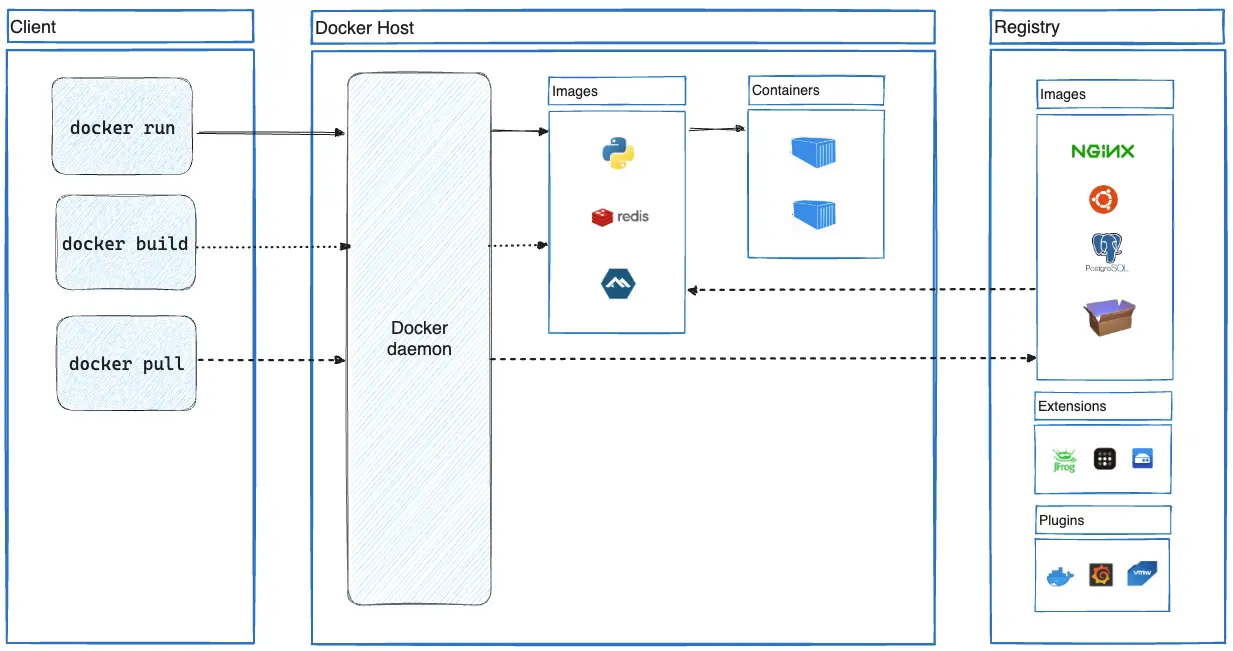
Containers Containers are isolated environments that package an application and its dependencies together. They ensure that the application runs consistently across different computing environments, from a developer’s laptop to a production server.
Images Docker images are the blueprints for containers. They are read-only templates that contain the application code, runtime, libraries, and dependencies needed to run an application.
Docker Engine This is the core technology that runs and manages containers on your machine. It acts as a client-server application, handling the building and running of containers.
Benefits of Docker
- Consistency: Applications run the same way in development, testing, and production environments.
- Portability: Containers can run on any system that supports Docker, regardless of the underlying operating system.
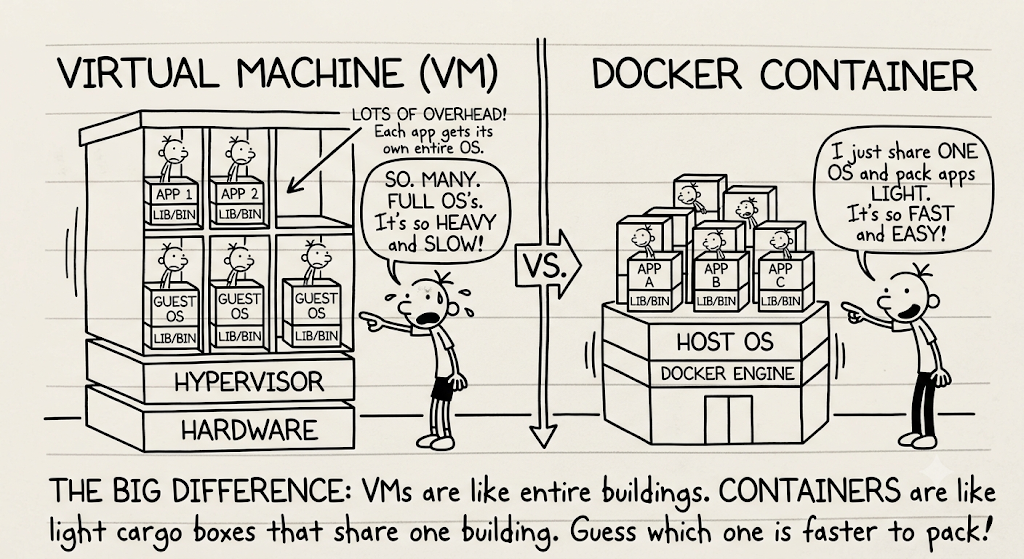
- Efficiency: Containers share the host system’s kernel, making them more lightweight than traditional virtual machines.
- Scalability: Docker makes it easy to scale applications up or down quickly by adding or removing containers.
How Docker Works?
- Developers create a Dockerfile, which specifies the application and its dependencies.
- The Dockerfile is used to build a Docker image.
- The image can be run to create a container, which executes the application.
- Containers can be easily shared, deployed, and managed across different environments.
How is it different from Virtual Machine?
| Docker | Virtual Machine | |
|---|---|---|
| Architecture | Uses containerization technology | Run a complete guest operating system on top of hypervisor |
| Shares the host operating system kernel | Fully virtualize the OS kernel and application | |
| Resource Utilization | Lightweight and efficient | More resource intensive |
| Uses resources on demand | Require full allocation of physical hardware resources | |
| Shares the host OS, leading to lower system resource consumption | Each VM runs a separate OS, consuming more CPU, RAM and storage | |
| Performance and Speed | Faster startup time (in millisec) | Longer startup times (minutes) |
| Ideal for microservices and cloud-native applications | better suited for monolithic or legacy applications | |
| Isolation and Security | Provides process-level isolation | Offers stronger isolation due to complete OS separation |
| Shares the host kernel, potentially increasing security risks | Each VM runs independently, enhancing security | |
| Use Cases | Ideal for microservices architecture | Better for scenarios requiring full OS isolation |
| Efficient for CI/CD pipelines and rapid development | Suitable for running applications on different OS | |
| Suitable for cloud native applications | Preferred for legacy applications or when strong isolation is necessary |
Purpose and Relevance to Data Engineering
- Purpose of Docker:
- Packages software into isolated containers.
- Ensures reproducibility across different environments (local, cloud, etc.).
- Enables running self-contained data pipelines and services (like Postgres or pgAdmin) without affecting the host system.
- Relevance for Data Engineers:
- Facilitates local experiments and integration tests.
- Supports reproducible environments for development and deployment.
- Helps manage dependencies (e.g., Python, Pandas) without cluttering the host system.
Getting Hands-On with Docker
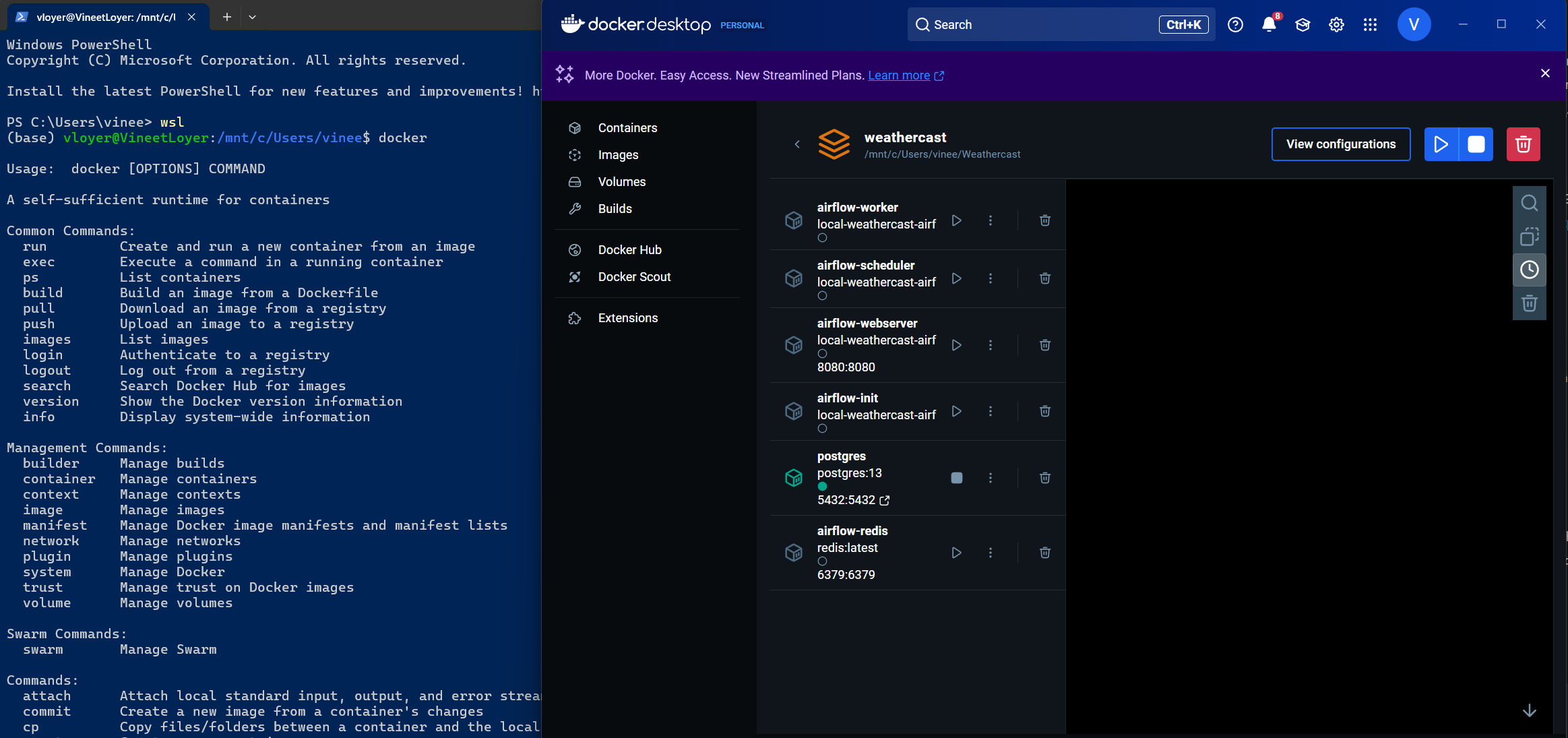
Assuming Docker and Docker Desktop are successfully installed (for installation on Windows, see the Docker Desktop installation guide).
docker run hello-world
What will this do? Purpose: To validate Docker installation and connectivity to Docker Hub.
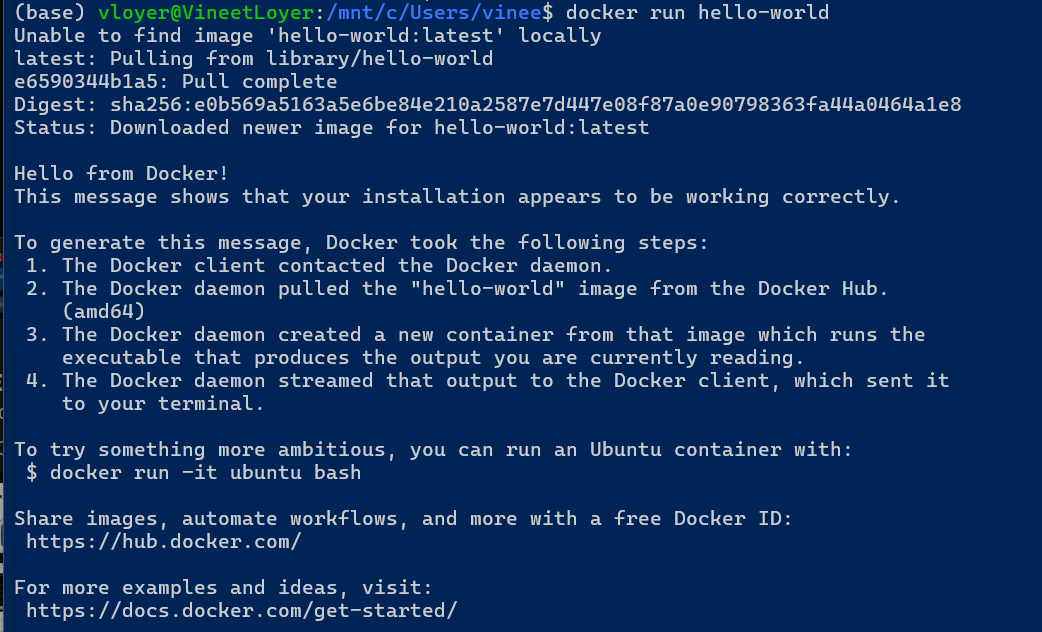
Goes to Docker Hub, it is where docker keeps all the images (snapshots) , Docker will look for image hello-world and it will download this image and run this image.
Running an interactive Ubuntu Container:
docker run -it ubuntu bash

Isolation - If we delete the content of the container (everything including the system command by executing rm -rf /) this does not affect the host PC at all. We can exit and execute docker run -it ubuntu bash again and Docker will serve us a new container.
Running a Python Container and Installing Dependencies:
docker run python:3.9
This starts a container with Python 3.9, we can try installing pandas inside the container with
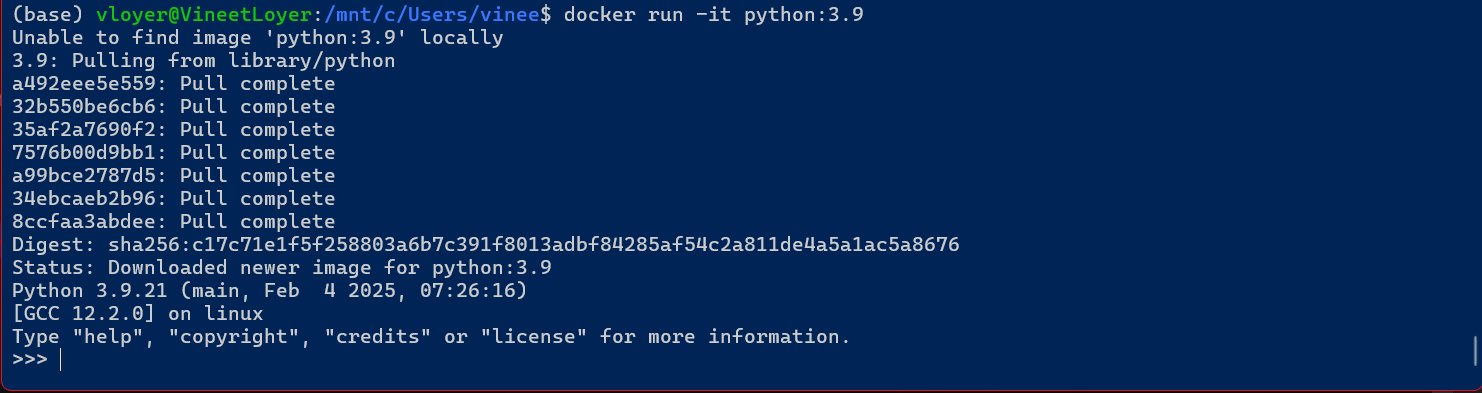
docker run -it --entrypoint=bash python:3.9
--entrypoint=bash allows you to write bash commands rather than entering the Python CLI.
pip install pandas
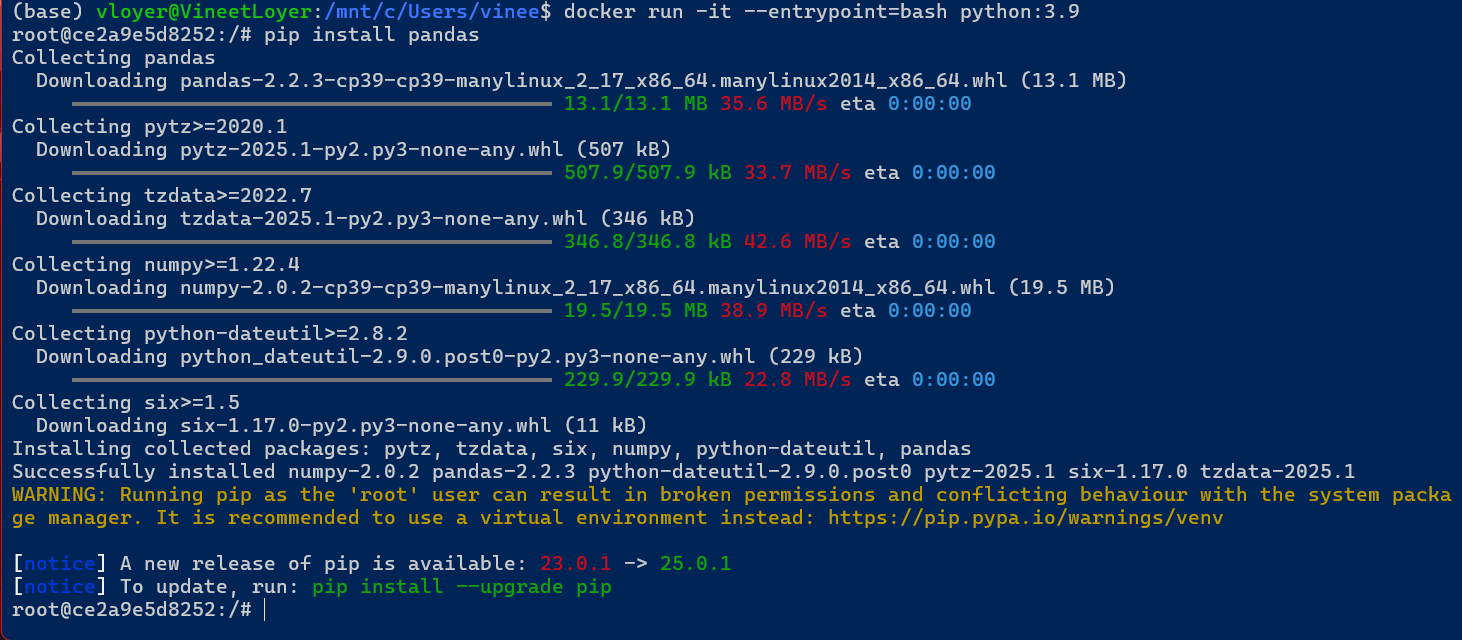
Outcome: Installs Pandas temporarily; however, changes are lost once the container is stopped.
Starting a shell

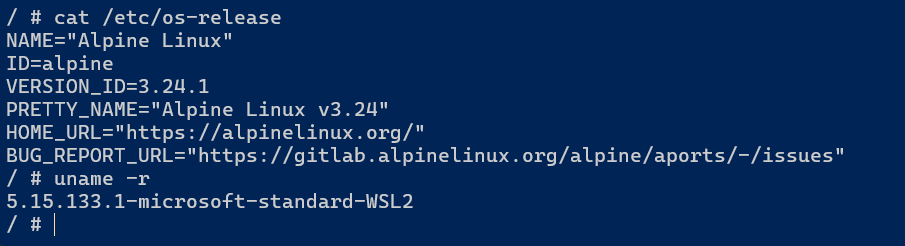
docker container run alpine sh
docker container run -it alpine sh
cat /etc/os-release
uname -r
Note: A container is an isolated process running on host’s kernel.
As visible in the screenshots, the first time we ran docker container run alpine sh docker didn’t find Alpine. So, it automatically contacted Docker Hub and downloaded latest distribution image.
-it flag opens an interactive environment inside the container such as a shell. Without interactive mode, Docker started sh, but there was no terminal attached so it exited sh and the container.
We can view the Linux distribution info using cat /etc/os-release — this signifies that the container has its own userspace and filesystem. Even though we are on WSL (Linux), we are able to run a different Linux distribution inside the container.
MOST IMP:
running uname -r inside the alpine shell gives us the system information. For me, its 5.15.133.1-microsoft-standard-WSL2 but why not Alpine kernel. Because, containers do not have their own kernel. They always use the host kernel.
The stack looks like - Windows -> WSL2 Linux kernel -> Docker engine -> Alpine container; the alpine container borrows the WSL2 Linux kernel.
Finding Images
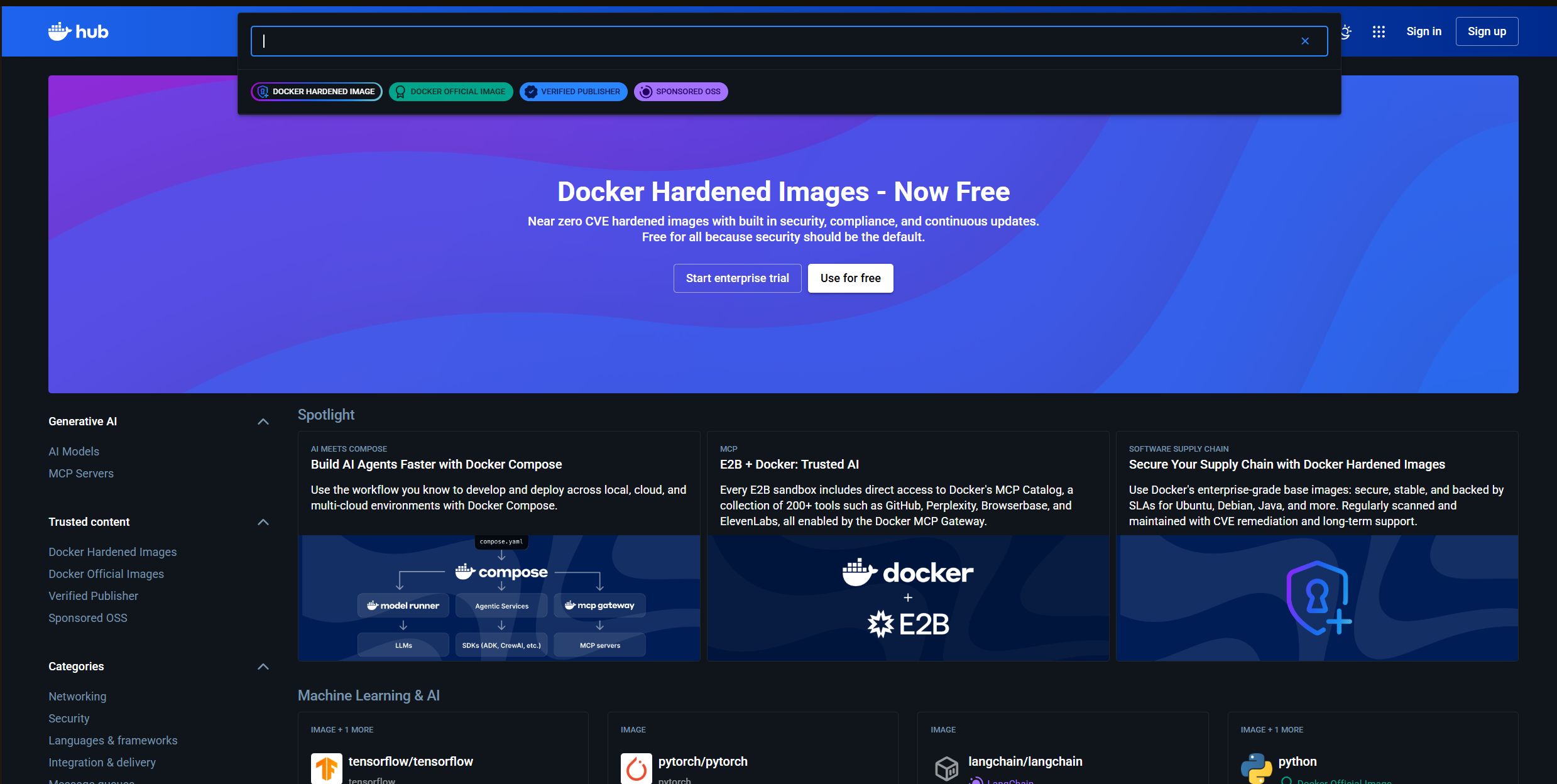
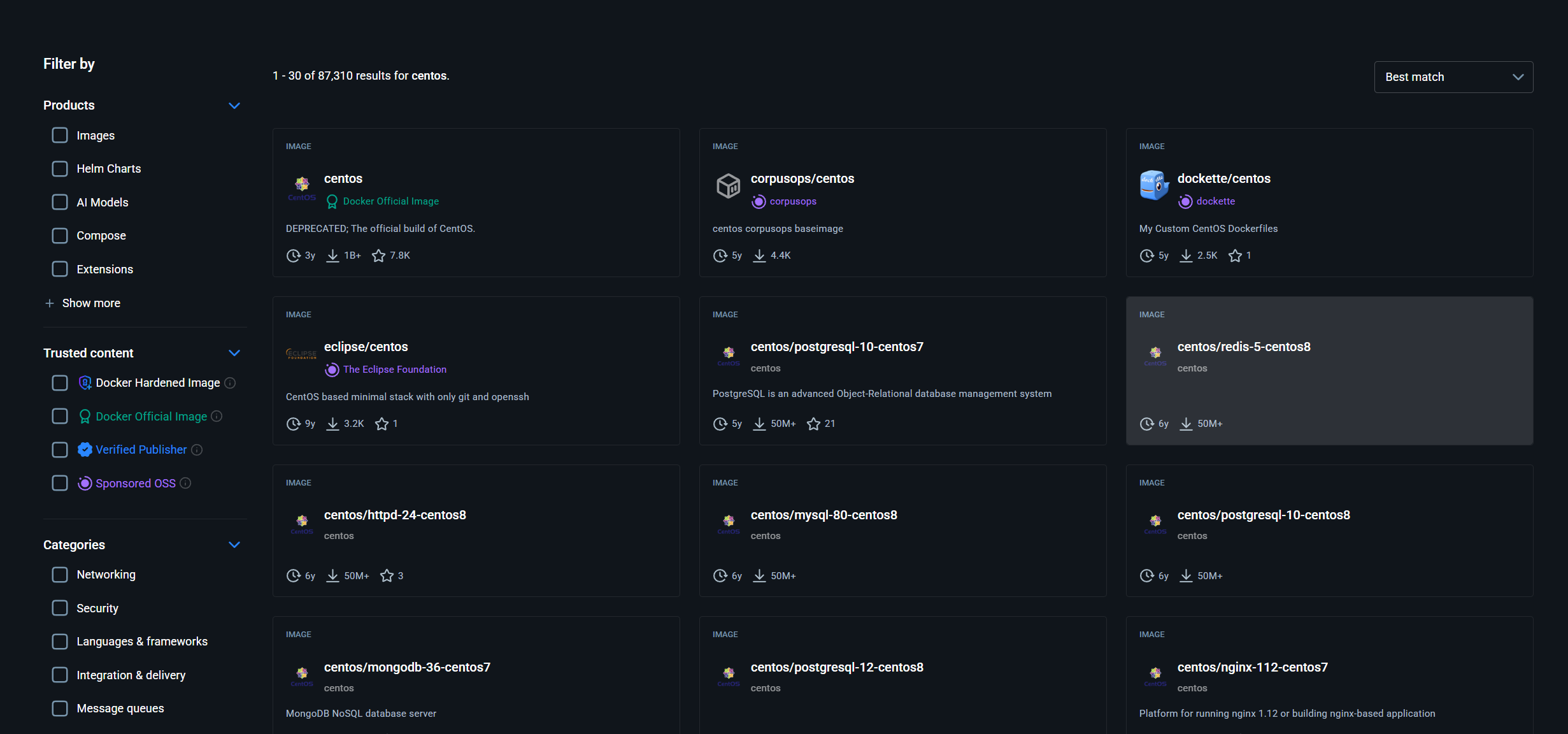
You can find images on Docker Hub.
Note:
- stick to tagged “Docker Official Images or Verified Publisher”
Letting things run
By default, when you use docker run, the container starts in the “foreground.” This means your terminal is locked to that process; if you press Ctrl+C or close the window, the container stops immediately.
To “let things run,” you must run the container in Detached Mode.
The Command: You achieve this by adding the -d (or --detach) flag to your run command (e.g., docker run -d nginx).
The Result: Docker starts the container in the background and immediately hands control of the terminal back to you, printing only the unique Container ID to confirm it is running.
ATTACHING AND INTERACTING
docker ps is your dashboard. It lists all the current running containers, showing you their IDs, generated names, uptime, and what ports they are using.
docker exec -it <container_name> /bin/bash if you have a background service running and you need to inspect its file system or run a manual command, exec lets us to open an interactive shell inside that already-running container.
When a container runs detached, you can no longer see its standard output (like startup messages, access logs, or errors) directly on your screen. Learning to retrieve this data is crucial for debugging applications in every step of their lifecycle.
docker logs <container_name>: This command allows you to read all the historical logs produced by your background container.
Following Logs: You can append the -f (follow) flag (docker logs -f <container_name>) to watch the logs stream live in real-time, just as if the container were running in the foreground.
Stopping and end of Container
docker stop <container_name>: This sends a polite signal to the container, giving the application time to save state and shut down safely.
docker kill <container_name>: If the container freezes or refuses to stop, this command forces an immediate, ungraceful shutdown.
Cleaning things up
When a container finishes running or is stopped, Docker does not automatically delete it. It retains the container’s final state so you can inspect its logs or restart it later. To keep your system clean, you must manually remove them.
docker container ls -a: The ls command lists your containers, but by default, it only shows active, running ones. Adding the -a (all) flag forces Docker to display every container on your system, including those that have successfully exited or crashed.
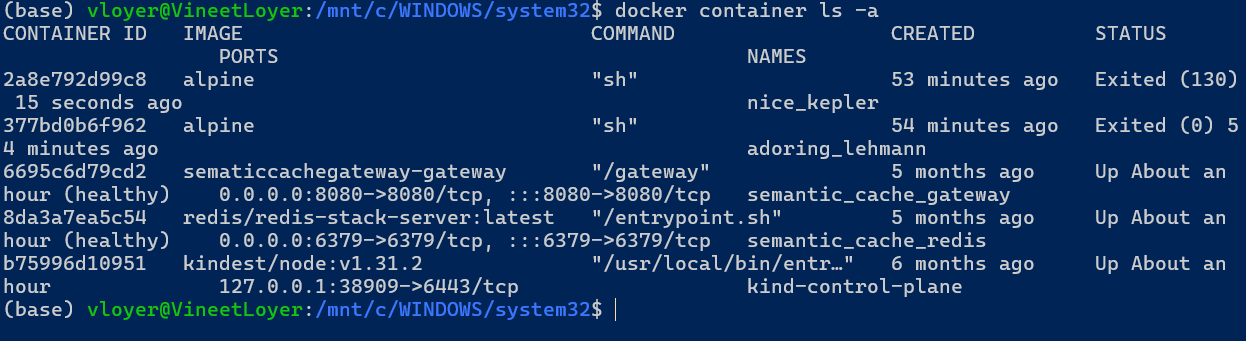
docker container rm <container_id>: The rm (remove) command deletes a specific container permanently. In this example, d610b552c56e is the unique Container ID.
docker container ls -aq: This combines the -a (all) flag with the -q (quiet) flag. The quiet flag tells Docker to strip away all the human-readable table formatting (like names, ports, and status) and output only the raw Container IDs.
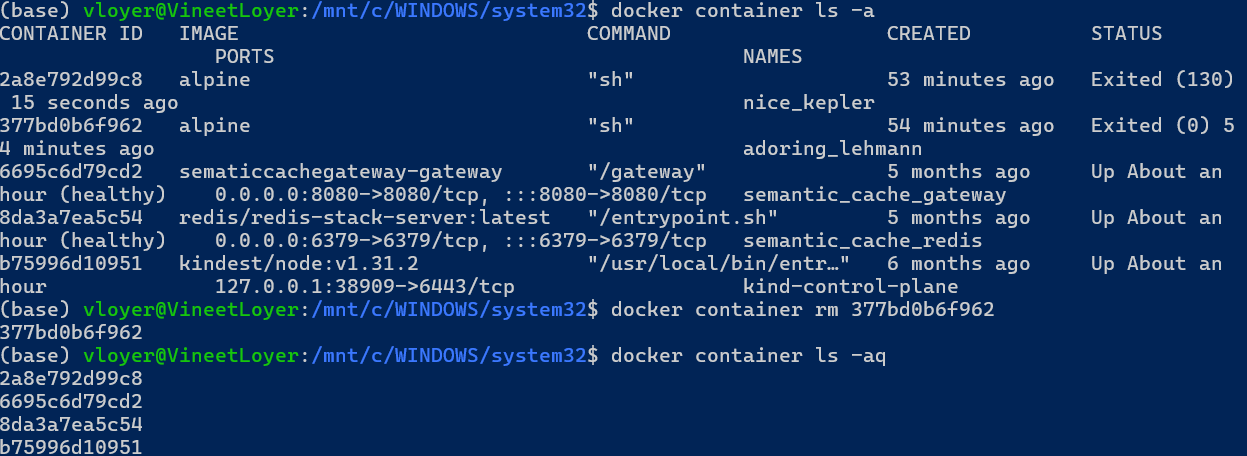
docker container rm $(docker container ls -aq): This is a powerful command-line shortcut. By wrapping the quiet list command in $(), you are using command substitution. Your terminal executes the inner command first, generating a raw list of all container IDs, and then passes that entire list directly to the rm command. This effectively deletes every container on your system in one swift action.
Docker images are the read-only templates containing your application code and dependencies. Over time, downloading multiple versions of different images can quickly eat up gigabytes of hard drive space.
docker image ls: This command displays a list of all the Docker images currently downloaded and stored locally on your machine.
docker image rm hello-world: This command deletes a specific image from your local system (in this case, the hello-world image).
Important Note: Docker has built-in safety mechanisms. You generally cannot remove an image if there is an existing container on your system (even a stopped one) that relies on that image template. You must clean up the dependent containers first before Docker will allow you to delete the source image.
Some helpful commands that make our life easier:
- Auto-cleaning with
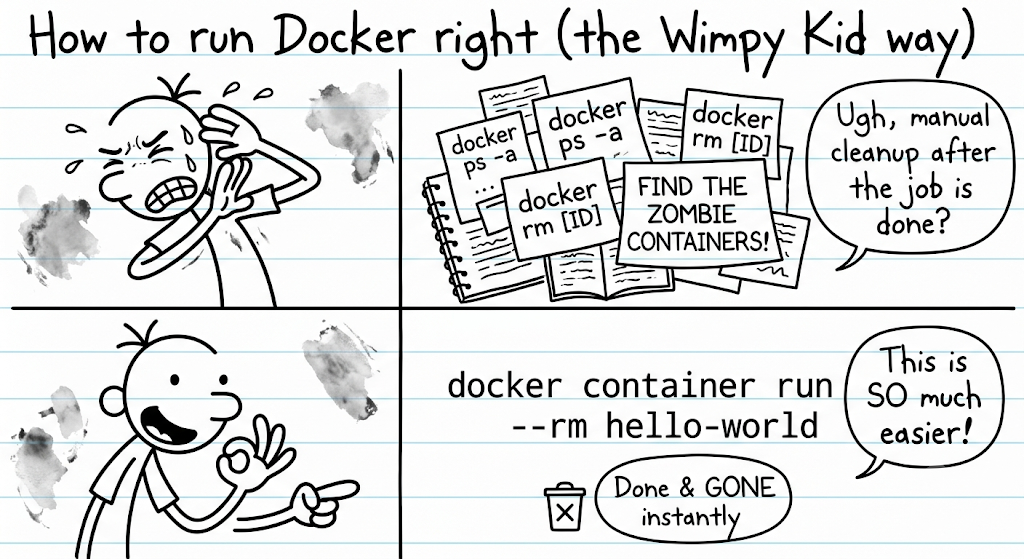
--rmWhen a container finishes running or is stopped, Docker does not automatically delete it. However, for simple tests or one-off tasks, you often don’t want the container lingering on your hard drive.
docker container run --rm hello-world: This command runs the standard hello-world image, but the addition of the –rm flag tells Docker to automatically delete the container the second it stops running.